What Are Common Places Work Data Leaks From a Personal Phone Without You Noticing?
A personal phone can leak work information without anyone hacking it. A notification appears on a locked screen. A photo syncs to a personal cloud account. A document opens in the wrong app. A message is mirrored to a tablet at home. Each step can feel routine—and still put patient or organizational data somewhere it should not be.
For clinicians and other staff, the first check is not a phone setting. It is your employer’s bring-your-own-device (BYOD) and device policy. That policy should tell you whether personal phones may be used for work, which apps and services are approved, what information may be accessed, and what to do if a device is lost or compromised. If the rules are unclear, ask your manager, IT team, information governance lead, or data protection officer before using the phone for work data.
The UK Information Commissioner’s Office (ICO) provides guidance on working securely and working from home securely. Its practical message is relevant wherever work happens: protect personal information with appropriate security measures, and follow your organization’s arrangements. A personal phone is not automatically a safe or approved work device simply because it has a passcode.
Start with the employer’s BYOD and device policy
BYOD rules vary between employers. One organization may allow staff to access work email through a managed app; another may prohibit access from personal devices altogether. Some may allow a limited set of work functions but not patient records, photos, or downloads. Do not assume that a colleague’s setup is permitted for you.
Before using a personal phone, check:
- Whether personal devices are allowed for the work activity you have in mind.
- Which approved apps, accounts, and networks you must use.
- Whether work data may be downloaded or stored locally.
- What security controls are required, such as a strong screen lock, encryption, or device management software.
- How to report a lost phone, accidental disclosure, or suspected compromise.
- What happens to work data when you leave the organization or withdraw the device from use.
Folder names do not create security. Putting work files in a folder labeled “Work” does not stop a backup service, another app, or a linked device from copying or displaying them. Use only the controls and systems your employer has approved.
Use approved systems only for patient and organizational data
Patient and organizational information should stay within approved systems. That includes messages, photographs, documents, calendar details, and notes—not just information inside the electronic patient record. A patient’s name in a notification or a screenshot of a work list can be identifying information too.
Do not use a personal email account, consumer messaging app, personal notes app, or unapproved file-sharing service as a workaround. If an approved system is unavailable, follow your employer’s downtime or escalation procedure instead of moving the information into a convenient personal app.
Likewise, do not assume that an app is approved because it is widely used or because it comes preinstalled on the phone. If you are unsure whether a particular app or account is authorized, check before entering or sharing work information.
Common places work data leaks from a personal phone
1. Notification previews on the lock screen
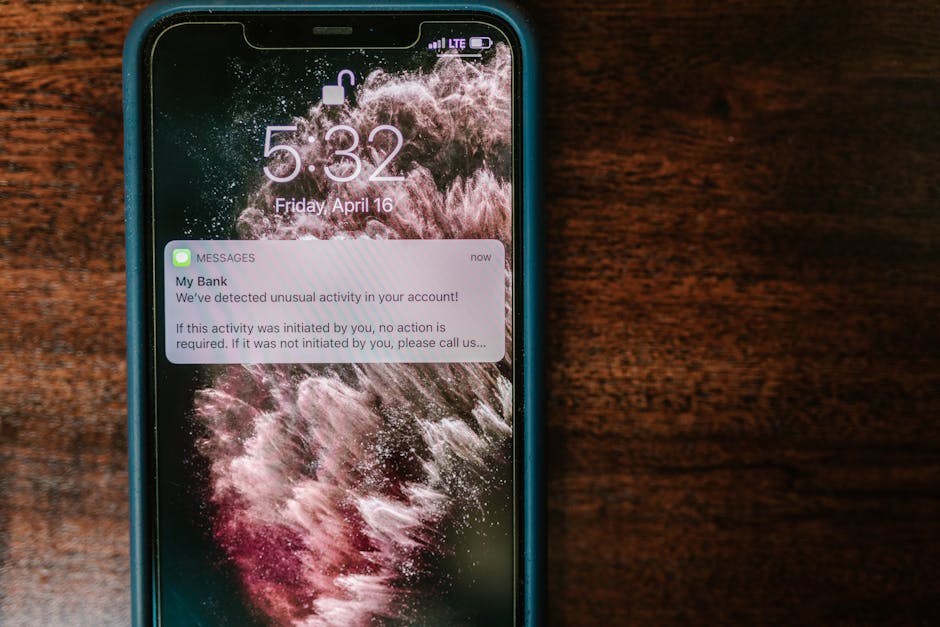
Notification previews can reveal names, appointment details, message content, or other sensitive information while the phone is locked. The person looking may be a family member, coworker, visitor, or anyone who can see the screen from nearby. A notification can also appear on a car display, smartwatch, or other connected device.
On a test device, I always check the actual lock screen after changing this setting. Menu labels differ between phones, and an option that sounds private may still show the sender or the first line of a message. Check the lock screen itself, then check connected displays if your organization permits the phone’s use.
- Turn off message content on the lock screen, or set previews to appear only after the phone is unlocked.
- Review notification settings in each work app, not only the phone’s general settings.
- Disable work notifications on shared or visible devices if your approved setup allows it.
- Lock the screen before leaving the phone unattended, even briefly.
2. Auto cloud sync and automatic backups
Auto cloud sync can quietly copy photos, videos, contacts, notes, or files to a personal cloud account. For example, a work image saved to the camera roll may be uploaded automatically. A document opened in a consumer storage app may sync to an account outside your organization’s control.
Do not rely on a separate folder to prevent this. Check which apps can access photos, files, contacts, and backups, and follow your employer’s instructions about whether work material may be stored on the device at all. If the policy prohibits local storage, do not download or capture the information. If you discover that work data has synced to a personal account, do not quietly delete it and assume the issue is resolved; follow your organization’s incident-reporting process.
3. Linked devices and message mirroring
Linked devices include tablets, laptops, smartwatches, car systems, and web versions of messaging or email services. They can display notifications or retain messages after you stop using the main phone. A device linked for convenience at home may be shared with someone else or have weaker security than your phone.
Review linked-device sessions in approved work services, and remove any connection you do not recognize or no longer need. Do not link work accounts to personal devices unless your employer permits it. Remember that logging out of an app on the phone may not automatically remove a session from a browser or second device.

4. Photos, screenshots, and the camera roll
A quick screenshot may capture more than intended: a patient list, a message thread, a staff schedule, or a record displayed behind a pop-up. Photos can also include identifying details in the background. If the image lands in the camera roll, it may be backed up or visible to apps with photo access.
Use only an employer-approved method for taking or storing work images, and only when there is a clear work purpose and authorization. Do not use the phone’s camera as a substitute for an approved clinical or organizational process.
5. Copy and paste, downloads, and “open with” menus
Copying text from a work app into a personal notes app or message can move information outside the approved system. So can downloading an attachment and choosing the wrong destination from an “open with” or share menu. These are easy mistakes because the options may appear side by side.
Before tapping, pause to check the app name, recipient, account, and destination. If you have selected the wrong option, stop the transfer if possible and report the incident under local policy. Do not send the information again through another route to “fix” the first attempt.
6. Shared access, voice assistants, and account mix-ups
A family member who knows the phone passcode, a shared tablet, or an account signed in on multiple devices can expose work information. Voice assistants may also respond to spoken prompts when the phone is nearby. Separately, a personal and work account with similar names can make it easy to send a file from the wrong one.
Keep the phone protected with a strong passcode and biometric security where approved, and do not share the passcode. Check which account is active before sending or saving anything. Disable features that announce messages or expose work content through voice or shared-device functions, where your organization’s policy and phone settings allow.
Quick check: where could information travel?
Phone feature or habit Possible exposure Practical check Notification previews Work details visible on the lock screen or connected display Lock the phone and trigger a test notification; check what is actually shown Auto cloud sync Work photos or files copied to a personal account Review backup, photo, and file-sync settings against employer policy Linked devices Messages or alerts displayed on a tablet, watch, computer, or car screen Review active sessions and remove unapproved or unused connections Share and “open with” menus Information sent to a personal app or unintended recipient Check the destination and recipient before confirming Camera roll and screenshots Images retained locally or uploaded by a backup service Do not capture work data unless an approved process authorizes itSeparate entertainment from clinical work
Mixing work and entertainment on one phone increases the number of places information can appear. Personal social, shopping, gaming, and photo apps may request access to notifications, contacts, photos, or files. That does not mean every app is unsafe; it means each extra connection can make it harder to understand where work information might go.
Use employer-approved work apps and accounts only for work, and keep personal apps out of the work process. If your organization provides a managed work profile or container, use it as instructed. It can help separate work from personal activity, but it does not replace following policy or checking where data is stored and displayed.
A practical routine for safer phone use
- Check permission first. Confirm the device and activity are allowed by your employer’s BYOD policy.
- Use approved systems only. Keep patient and organizational data in authorized apps and accounts.
- Test the lock screen. Trigger a work notification and see what is visible before and after unlocking.
- Review sync and connections. Check auto cloud sync, backups, linked devices, and app permissions.
- Pause at share menus. Verify the app, account, recipient, and destination before tapping send or save.
- Report problems promptly. Follow local instructions if the phone is lost, data goes to the wrong place, or an unfamiliar connection appears.
Use ICO guidance—and your local process
The ICO’s guidance on security under the UK GDPR explains the need for appropriate technical and organizational measures to protect personal information. Its working from home securely guidance also offers practical security considerations for staff working away from organizational premises. Read these alongside your employer’s current policies: local rules determine which devices, apps, and work activities are approved.
If a leak may have happened, report it through your organization’s incident or information governance Check out here route as soon as possible. Include what information may be involved, where it may have gone, and what steps you have already taken. Prompt reporting gives the organization a chance to contain the exposure and assess what to do next.
The takeaway
The most common phone leaks are often ordinary features doing exactly what they were designed to do: showing notification previews, copying files through auto cloud sync, or sharing alerts through linked devices. Start with the employer’s BYOD policy, use approved systems only for patient and organizational data, and keep entertainment apps out of the work process. Click here! Then test privacy settings on the actual lock screen and check where the phone can send or display information. Small checks, done before work data is involved, are much easier than trying to undo a disclosure later.